Como construir um DApp no TomoChain
Guiar sobre como desenvolver um contrato inteligente simples escrito em Solidity e implantá-lo na rede de testes TomoChain
Este artigo vai levá-lo através do processo de construção de um DApp básico no TomoChain — um sistema de rastreamento de adoção para um pet shop!
Neste guia estaremos cobrindo:
- Criação do Truffle, a estrutura de desenvolvimento mais popular para o Ethereum, que também funciona perfeitamente para o TomoChain
- Criando um projeto trufá
- Criando uma carteira TomoChain
- Solicitando tokens gratuitos usando torneira TomoChain
- Escrevendo um contrato inteligente
- Compilando e migrando o contrato inteligente para a TomoChain
- Conectando Metamask à testnet TomoChain
- Criando uma interface de usuário para interagir com o contrato inteligente
O que é TomoChain?
TomoChain é uma solução inovadora para o problema de escalabilidade com a blockchain Ethereum e outras plataformas blockchain. A arquitetura de masternode TomoChain POSV oferece taxa de transação próxima de zero e confirmação de transações instantâneas. Segurança, estabilidade e finalidade em cadeia são garantidas através de novas técnicas como validação dupla e randomização uniforme.
O TomoChain suporta todos os contratos inteligentes, protocolos e transferências de tokens interseção atômico compatíveis com EVM. Técnicas de dimensionamento, como fragmentos, paraleloização EVM, geração de cadeia privada, integração de hardware serão continuamente pesquisadas e integradas ao TomoChain, que se tornará uma blockchain pública de contrato inteligente escalável ideal para aplicativos descentralizados, emissão de tokens e integração de tokens para pequenas e grandes empresas.
Todo DApp rodando no Ethereum pode ser facilmente portado para TomoChain
Por que os desenvolvedores devem criar DApps no TomoChain?
Lembra-se do CryptoKitties em 2017? Um único DApp colocou toda a blockchain do Ethereum de joelhos. A rede estava congestionada, com tempos de espera infinitos para confirmação de transações e altas taxas de transação. Portar para TomoChain pareceria uma boa ideia para os gatinhos bonitos.
TomoChain mainnet pode processar 2.000 TPS, que é 100x mais rápido que a blockchain Ethereum, e por uma fração do custo. Se isso não for bom o suficiente, a empresa com sede no Vietnã está trabalhando em sua solução Desarmagem com o objetivo de entregar 20'000-30.000 TPS até o segundo trimestre de 2019.
Neste tutorial, veremos como construir um DApp usando solidez e, em seguida, implantá-lo na blockchain TomoChain.
Nota: Como a implantação de um contrato inteligente na mainnet é muito semelhante à testnet, as diferenças são apenas as informações de configuração, este documento mencionará explicitamente as diferenças sempre que possível
0. Pré-requisitos
Para começar a construir seu DApp, você precisará instalar alguns programas:
Para verificar se o Nó está instalado corretamente, abra um console (administrador PowerShell no Windows) e digite . Isso deve imprimir um número de versão, como .node -vv10.15.0
Para testar npm, digite e você deve ver o número da versão, como .npm -v6.4.1
1. Começando: Instalação
Truffle Framework é uma ótima ferramenta para o desenvolvimento de DApps. Você pode usar truffle para implantar seus contratos inteligentes para TomoChain.
Só precisamos deste comando único para instalar o Truffle, a estrutura de desenvolvimento popular do Ethereum.
npm install -g truffleVocê pode verificar se trufa está corretamente instalado digitando .truffle version
2. Criando um projeto de trufa
A trufa é inicializa no diretório atual, então primeiro crie um diretório em sua pasta de desenvolvimento de escolha e depois mova-se para dentro dele.
mkdir pet-shop-tutorialcd pet-shop-tutorial
Vamos ver como criar um projeto trufá. Há duas opções. Você pode criar um novo projeto do zero sem contratos inteligentes incluídos, e a outra opção para aqueles que estão apenas começando, você pode usar Truffle Boxes, que são aplicativos de exemplo e modelos de projeto.


Há uma Truffle Box especial para este tutorial chamado , que inclui a estrutura básica do projeto, bem como o código para a interface do usuário. Use o comando para desempacotar esta trufa:pet-shoptruffle unbox
truffle unbox pet-shopA estrutura padrão do diretório Truffle contém uma série de pastas e arquivos. Se você quiser saber mais, por favor, verifique os tutoriais de Trufas.
Nota: Este tutorial é focado em todo o processo para construir um DApp no TomoChain,para que não entremos em todos os detalhes.
3. Criando uma carteira TOMO
Você precisará de um endereço de carteira e alguns tokens. Mostraremos como fazê-lo tanto no TomoChain Testnet quanto na Mainnet.
3.1 Crie uma carteira TOMO e salve seu Mnemonic
Você pode criar uma nova carteira TOMO usando o aplicativo móvel TomoWallet para Android ou iOS. Em Configurações vá para Configurações Avançadas, aqui você pode Escolher rede e selecionar ou [mainnet].TomoChain TestNetTomoChain
Vá para o menu Configurações, selecione Carteira de backup e, em seguida, Continue. Aqui você pode ver a chave privada da sua carteira e a frase de recuperação de 12 palavras. Anote a frase de recuperação de 12 palavras.

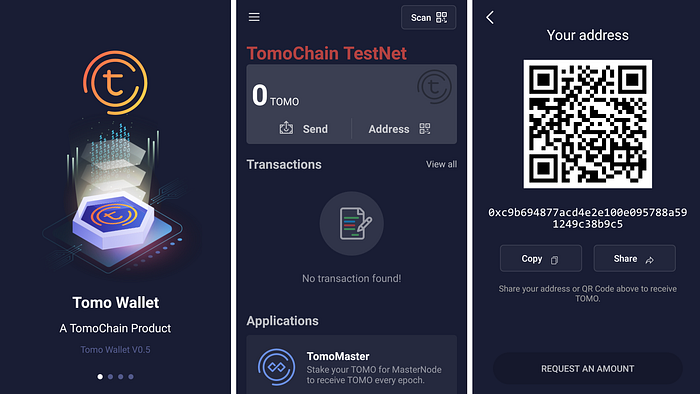
You can also create a new TomoChain wallet with MetaMask, MyEtherWallet or TrustWallet. For instance, for mainnet you can go to MyEtherWallet and select TOMO (tomochain.com) on the top right corner. Enter a password and then Create a new wallet. Write down your recovery phrase.
For this tutorial, my wallet address (testnet) is:
0xc9b694877acd4e2e100e095788a591249c38b9c5My recovery phrase (12-word ) is:mnemonic
myth ahead spin horn minute tag spirit please gospel infant clog cameraWrite them down. This will be needed later. Notice that your wallet address (public key) and your recovery phrase will be different than mine.
Important! Always keep your private key and recovery phrase secret!
3.2 Get some TOMO funds
Tokens are required for different matters, like smart contract deployment or to use in DApps.
Testnet: Receive 15 free testnet TOMO tokens using TomoChain’s Faucet.
Mainnet: You need real TOMO tokens from exchanges.
Go to faucet and collect . Now your wallet has enough balance to do everything in this tutorial so… let’s go ahead!30 TOMO
3.3 The Block Explorer
To check the balance of a wallet address, you can use TomoScan.
Testnet: https://scan.testnet.tomochain.com/
Mainnet: https://scan.tomochain.com/
4. Writing the smart contract
We’ll start our DApp by writing the smart contract that acts as the back-end logic and storage.
- Create a new file named in the directory.
Adoption.solcontracts/ - Copy the following code:
pragma solidity ^0.5.0;contract Adoption {
  address[16] public adopters;  // Adopting a pet
  function adopt(uint petId) public returns (uint) {
    // check that petId is in range of our adopters array
    require(petId >= 0 && petId <= 15);    // add the address who called this function to our adopter array
    adopters[petId] = msg.sender;    // return the petId provided as a confirmation
    return petId;
  }  // Retrieving the adopters
  function getAdopters() public view returns (address[16] memory) {
    return adopters;
  }
}
Note: Code from Truffle’s Pet-Shop tutorial — if you want to look deeper into the Solidity code, they slowly go through the Truffle link explaining the details.
5. Compiling
Solidity is a compiled language, meaning we need to compile our Solidity to bytecode for the Ethereum Virtual Machine (EVM) to execute. Think of it as translating our human-readable Solidity into something the EVM understands.
TomoChain is EVM-compatible, which means that every contract written in Ethereum can be seamlessly ported to TomoChain without effort
In a terminal, make sure you are in the root of the directory that contains the DApp and type:
truffle compileYou should see output similar to the following:
Compiling ./contracts/Migrations.sol...
Compiling ./contracts/Adoption.sol...
Writing artifacts to ./build/contracts
6. Migration — Deploying
Now that we’ve successfully compiled, it’s time to migrate your smart contracts to TomoChain’s blockchain!
A migration is a deployment script meant to alter the state of your application’s contracts, moving it from one state to the next. (More about migrations in the Truffle documentation).
6.1 Create the migration scripts
Open the directory and you will see one JavaScript file: . This handles deploying the contract to observe subsequent smart contract migrations, and ensures we don't double-migrate unchanged contracts in the future.migrations/1_initial_migration_jsMigrations.sol
Now we are ready to create our own migration script.
- Create a new file named in the directory.
2_deploy_contracts.jsmigrations/ - Add the following content to the file:
2_deploy_contracts.js
var Adoption = artifacts.require("Adoption");module.exports = function(deployer) {
  deployer.deploy(Adoption);
};
6.2 Configure the migration networks in truffle.js
Now we are almost ready to deploy to TomoChain. Let’s see how to deploy your smart contract to a custom provider, any blockchain of your choice, like TomoChain.
Before starting the migration, we need to specify the blockchain where we want to deploy our smart contracts, specify the address to deploy — the wallet we just created, and optionally the gas, gas price, etc.
1. Install Truffle’s , a separate npm package to find and sign transactions for addresses derived from a 12-word — in a certain blockchain. (Read more about HDWalletProvider.)HDWalletProvidermnemonic
npm install truffle-hdwallet-provider2. Open file ( on Windows). You can edit here the migration settings: networks, chain IDs, gas... The current file has only a single network defined, you can define multiple. We will add three networks to migrate our DApp: , and .truffle.jstruffle-config.jsdevelopmenttomotestnettomomainnet
The official TomoChain documentation — Networks is very handy. Both Testnet and Mainnet network configurations are described there. We need the , the and the .RPC endpointChain idHD derivation path
Replace the file with this new content:truffle.js
'use strict'var HDWalletProvider = require("truffle-hdwallet-provider");var mnemonic = '<PUT YOUR WALLET 12-WORD RECOVERY PHRASE HERE>';module.exports = {
  networks: {
    development: {
      provider: () => new HDWalletProvider(
        mnemonic,
        "http://127.0.0.1:8545",
      ),
      host: "127.0.0.1",
      port: "8545",
      network_id: "*", // Match any network id
    },    tomotestnet: {
      provider: () => new HDWalletProvider(
        mnemonic,
        "https://testnet.tomochain.com",
        0,
        1,
        true,
        "m/44'/889'/0'/0/",
      ),
      network_id: "89",
      gas: 2000000,
      gasPrice: 10000000000000,
    },    tomomainnet: {
      provider: () => new HDWalletProvider(
        mnemonic,
        "https://rpc.tomochain.com",
        0,
        1,
        true,
        "m/44'/889'/0'/0/",
      ),
      network_id: "88",
      gas: 2000000,
      gasPrice: 10000000000000,
    }
  }
};
3. Remember to update the file using your own wallet recovery phrase. Copy the 12 words obtained previously and paste it as the value of the variable.truffle.jsmnemonic
var mnemonic = '<PUT YOUR WALLET 12-WORD RECOVERY PHRASE HERE>';Done. Please, notice the network will be used to deploy our smart contract. We have also added the network, in case you want to deploy to TomoChain Mainnet. However, if you are familiar with Ganache, you could use the network to do the local test as well if you want to. Ganache is a locally running personal blockchain for Ethereum development you can use to deploy contracts, develop applications, and run tests.tomotestnettomomainnetdevelopment
We have added the migration configuration so we are now able to deploy to public blockchains like TomoChain (both testnet and mainnet).
Warning: In production, we highly recommend storing the mnemonic in another secret file (loaded from environment variables or a secure secret management system), to reduce the risk of the mnemonic becoming known. If someone knows your mnemonic, they have all of your addresses and private keys!
Want to try? With npm package you can load an environment variable from a file , — then update your truffle.js to use this secret .dotenv.envmnemonic
6.3 Start the migration
You should have your smart contract already compiled. Otherwise, now it’s a good time to do it with .truffle compile
Back in our terminal, migrate the contract to TomoChain testnet network:
truffle migrate --network tomotestnetThe migrations will start…
Starting migrations...
======================
> Network name:    'tomotestnet'
> Network id:      89
> Block gas limit: 840000001_initial_migration.js
======================Deploying 'Migrations'
   ----------------------
   > transaction hash:    0x77d9cdf0fb810fd6cec8a5616a3519e7fa5d42ad07506802f0b6bc10fa9e8619
   > Blocks: 2            Seconds: 4
   > contract address:    0xA3919059C38b1783Ac41C336AAc6438ac5fd639d
   > account:             0xc9b694877AcD4e2E100e095788A591249c38b9c5
   > balance:             27.15156
   > gas used:            284844
   > gas price:           10000 gwei
   > value sent:          0 ETH
   > total cost:          2.84844 ETH> Saving migration to chain.
   > Saving artifacts
   -------------------------------------
   > Total cost:             2.84844 ETH2_deploy_contracts.js
=====================Deploying 'Adoption'
   --------------------
   > transaction hash:    0x1c48f603520147f8eebc984fadc944aa300ceab125cf40f77b1bb748460db272
   > Blocks: 2            Seconds: 4
   > contract address:    0xB4Bb4FebdA9ec02427767FFC86FfbC6C05Da2A73
   > account:             0xc9b694877AcD4e2E100e095788A591249c38b9c5
   > balance:             24.19238
   > gas used:            253884
   > gas price:           10000 gwei
   > value sent:          0 ETH
   > total cost:          2.53884 ETH> Saving migration to chain.
   > Saving artifacts
   -------------------------------------
   > Total cost:             2.53884 ETHSummary
=======
> Total deployments:   2
> Final cost:          5.38728 ETH
The transaction ID is:
0x1c48f603520147f8eebc984fadc944aa300ceab125cf40f77b1bb748460db272The contract address is:
0xB4Bb4FebdA9ec02427767FFC86FfbC6C05Da2A73Congratulations! You have already deployed your smart contract to TomoChain. All this in just 8 seconds. We started with and the deployment has costed in gas fees.30 TOMO5.38 TOMO
Note: The command to deploy to TomoChain mainnet is very similar:
truffle migrate --network tomomainnet
*** Troubleshooting ***
- Error: . Why? Increasing transaction fees for smart contract creation is one of the ways TomoChain offers to defend against spamming attacks. Solution: edit and add more gas/gasPrice to deploy.
smart contract creation cost is under allowancetruffle.js - Error: . Why? You don’t have enough tokens in your wallet for gas fees. Solution: you need more funds in your wallet to deploy, go to faucet and get more tokens.
insufficient funds for gas * price + value
6.4 Check the deployment transaction
If you want to verify that your contract was deployed successfully, you can check on TomoScan testnet (or mainnet). In the search field, type in the transaction ID for your new contract.
You should see details about the transaction, including the block number where the transaction was secured.

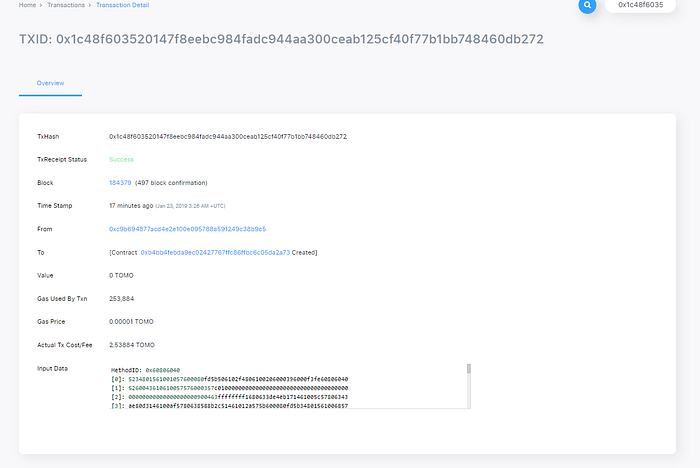
You can also enter your wallet address on the TomoScan search bar. You will find 4 transactions out. Your contract has been successfully deployed to TomoChain.
Congratulations! You’ve deployed your contract to TomoChain using Truffle. You have written your first smart contract and deployed it to a public blockchain. It’s time to interact with our smart contract now to make sure it does what we want.
7. Testing the smart contract
It is a good idea to test your smart contracts. You can write some tests in the directory and execute with . Find more details on Truffle’s Pet Shop tutorial.test/truffle test

8. Creating a user interface to interact with the smart contract
Now we’ve created the smart contract and deployed it to TomoChain blockchain (testnet). It’s time to create a UI so that people can use the shop!
Included with the Truffle Box was code for the app’s front-end. That code exists within the directory.pet-shopsrc/
The front-end doesn’t use a build system (webpack, grunt, etc.) to be as easy as possible to get started. The structure of the app is already there; we’ll add in the functions unique to Ethereum.
1. Open in a text editor./src/js/app.js
2. Examine the file. Note that there is a global object to manage our application, load in the pet data in and then call the function . The web3 JavaScript library interacts with the Ethereum blockchain. It can retrieve user accounts, send transactions, interact with smart contracts, and more.Appinit()initWeb3()
3. The current file has some incomplete functions that you must fill in. Replace the old code and paste this new code:
App = {
  web3Provider: null,
  contracts: {},
  init: async function() {
    // Load pets.
    $.getJSON('../pets.json', function(data) {
      var petsRow = $('#petsRow');
      var petTemplate = $('#petTemplate');
      for (i = 0; i < data.length; i ++) {
        petTemplate.find('.panel-title').text(data[i].name);
        petTemplate.find('img').attr('src', data[i].picture);
        petTemplate.find('.pet-breed').text(data[i].breed);
        petTemplate.find('.pet-age').text(data[i].age);
        petTemplate.find('.pet-location').text(data[i].location);
        petTemplate.find('.btn-adopt').attr('data-id', data[i].id);
        petsRow.append(petTemplate.html());
      }
    });
    return await App.initWeb3();
  },  initWeb3: async function() {
    //----
    // Modern dapp browsers...
    if (window.ethereum) {
      App.web3Provider = window.ethereum;
      try {
        // Request account access
        await window.ethereum.enable();
      } catch (error) {
        // User denied account access...
        console.error("User denied account access")
      }
    }
    // Legacy dapp browsers...
    else if (window.web3) {
      App.web3Provider = window.web3.currentProvider;
    }
    // If no injected web3 instance is detected, fall back to Ganache
    else {
      App.web3Provider = new     Web3.providers.HttpProvider('http://localhost:7545');
    }
    web3 = new Web3(App.web3Provider);
    //----
    return App.initContract();
  },  initContract: function() {
    //----
    $.getJSON('Adoption.json', function(data) {
      // Get the necessary contract artifact file and instantiate it with truffle-contract
      var AdoptionArtifact = data;
      App.contracts.Adoption = TruffleContract(AdoptionArtifact);      // Set the provider for our contract
      App.contracts.Adoption.setProvider(App.web3Provider);      // Use our contract to retrieve and mark the adopted pets
      return App.markAdopted();
    });
    //----    return App.bindEvents();
  },  bindEvents: function() {
    $(document).on('click', '.btn-adopt', App.handleAdopt);
  },  markAdopted: function(adopters, account) {
    //----
    var adoptionInstance;
    App.contracts.Adoption.deployed().then(function(instance) {
      adoptionInstance = instance;      return adoptionInstance.getAdopters.call();
    }).then(function(adopters) {
      for (i = 0; i < adopters.length; i++) {
        if (adopters[i] !== '0x0000000000000000000000000000000000000000') {
          $('.panel-pet').eq(i).find('button').text('Success').attr('disabled', true);
        }
      }
    }).catch(function(err) {
      console.log(err.message);
    });
    //----
  },  handleAdopt: function(event) {
    event.preventDefault();    var petId = parseInt($(event.target).data('id'));    //----
    var adoptionInstance;    web3.eth.getAccounts(function(error, accounts) {
      if (error) {
        console.log(error);
      }      var account = accounts[0];      App.contracts.Adoption.deployed().then(function(instance) {
        adoptionInstance = instance;        // Execute adopt as a transaction by sending account
        return adoptionInstance.adopt(petId, {from: account});
      }).then(function(result) {
        return App.markAdopted();
      }).catch(function(err) {
        console.log(err.message);
      });
    });
    //---
  }
};$(function() {
  $(window).load(function() {
    App.init();
  });
});
Here is what these functions do:
initWeb3() Checks if we are using modern DApp browsers or the more recent versions of MetaMask.
initContract() Retrieves the artifact file for our smart contract. Artifacts are information about our contract such as its deployed address and Application Binary Interface (ABI). The ABI is a JavaScript object defining how to interact with the contract including its variables, functions and their parameters. We then call the app's function in case any pets are already adopted from a previous visit.markAdopted()
markAdopted() After calling , we then loop through all of them, checking to see if an address is stored for each pet. Ethereum initializes the array with 16 empty addresses. This is why we check for an empty address string rather than null or other falsey value. Once a with a corresponding address is found, we disable its Adopt button and change the button text to "Success", so the user gets some feedback.getAdopters()petId
handleAdopt() We get the deployed contract and store the instance in . We're going to send a transaction instead of a call by executing the function with both the pet's ID and an object containing the account address. Then, we proceed to call our function to sync the UI with our newly stored data.adoptionInstanceadopt()markAdopted()
9. Interacting with the DApp in a browser
Now we’re ready to use our DApp!
9.1 Install and configure MetaMask
- Install the MetaMask browser extension in Chrome or FireFox.
- Once installed, you’ll see the MetaMask fox icon next to your address bar. Click the icon and MetaMask will open up.
- Create a New password. Then, write down the Secret Backup Phrase and accept the terms. By default, MetaMask will create a new Ethereum address for you.


4. Now we’re connected to the Ethereum network,with a brand new wallet with 0 ETH.
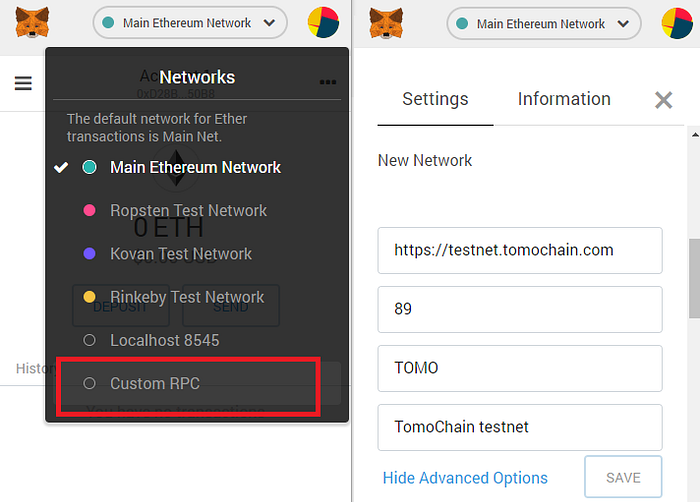
5. Let’s now connect MetaMask to TomoChain (testnet). Click the menu with the “Main Ethereum Network” and select Custom RPC. Use the Networks data from TomoChain (testnet) and click Save.

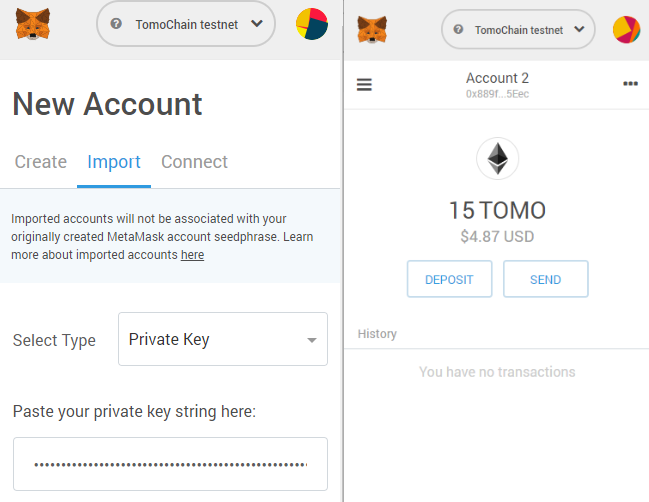
6. The network name at the top will switch to say “TomoChain testnet”. Now that we are on TomoChain network we can import TomoChain wallets.
We could use the TOMO wallet we created previously, but better let’s create a new TOMO wallet and add a few TOMO tokens — you know how to do it.
7. Once you have created your new TOMO wallet, copy the private key. Back to MetaMask, click on the top-right circle and select Import Account. Paste the private key and voilà! Your TOMO wallet is loaded in MetaMask.

9.2 Using the DApp
We will now start a local web server and interact with the DApp. We’re using the . This shipped with the Truffle box.lite-serverpet-shop
The settings for this are in the files and , if you want to take a look. These tell npm to run our local install of when we execute from the console.bs-config.jsonpackage.jsonlite-servernpm run dev
- Start the local web server:
npm run devThe dev server will launch and automatically open a new browser tab containing your DApp.

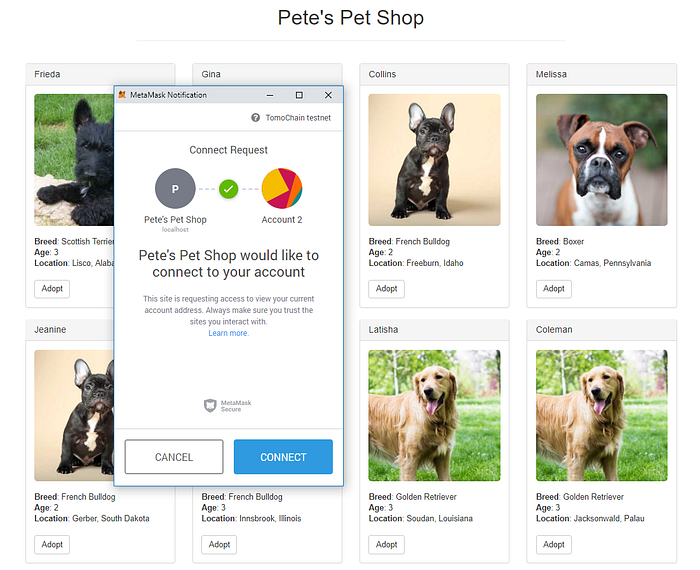
Normally, a MetaMask notification automatically requests a connection.
2. To use the DApp, click the Adopt button on the pet of your choice.
3. You’ll be automatically prompted to aprove the transaction by MetaMask. Set some Gas and click Confirm to approve the transaction.

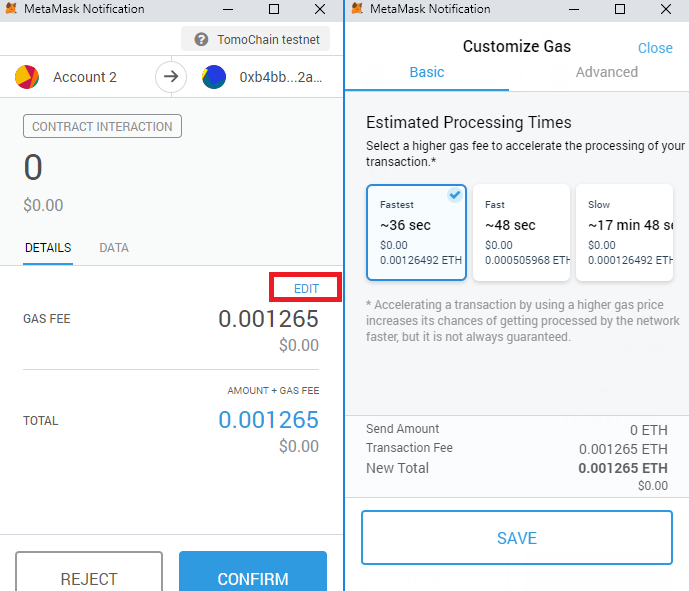
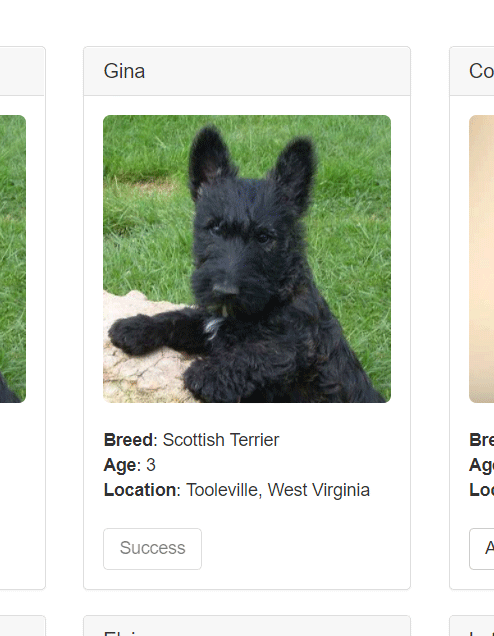
4. You’ll see the button next to the adopted pet change to say “Success” and become disabled, just as we specified, because the pet has now been adopted.

And in MetaMask you’ll see the transaction listed:

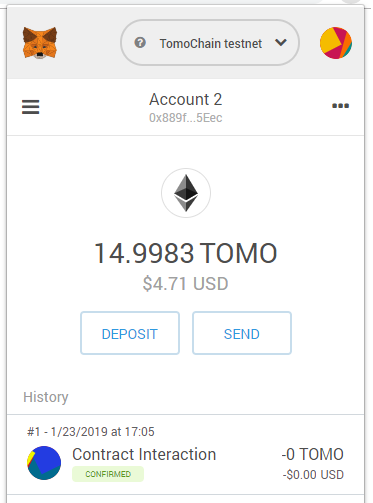
Parabéns, você é um idiota Você deu um grande passo para se tornar um desenvolvedor de DApp completo. Você tem todas as ferramentas necessárias para começar a fazer DApps mais avançados e agora você pode fazer seu DApp ao vivo para outros usarem a implantação do TomoChain, o blockchain mais eficiente para a economia de tokens!
Código Fonte
O código-fonte deste tutorial está disponível no Github.
Comentários
Postar um comentário